| Date tip published: | 01/30/2006 |
| Description: | This tip describes how to use two of the new Mail features in the Notes 7 client. Message flagging allows a message to be flagged for follow-up and Message Marking displays a special icon in the Inbox folder when your name is specifically in the to or cc fields. |
To learn more about the new features in Notes and Domino 7 use the following links:
Notes 7 User Courses - Demonstration
Notes Domino 7 Application Development Update
Notes Domino 7 System Administration Update
 Flagging and Marking Messages Flagging and Marking Messages
This tip describes how to use two of the new Mail features in the Notes 7 client:
- Message Flagging - New quicker methods for flagging a message for follow-up have been added to the Mail interface.
- Message Marking - Messages can now be marked to display icons when your name is in the To or cc field.
 Message Flagging Message Flagging
Message flagging was introduced in Release 6. It is now possible to flag messages for follow-up more quickly with three new methods:
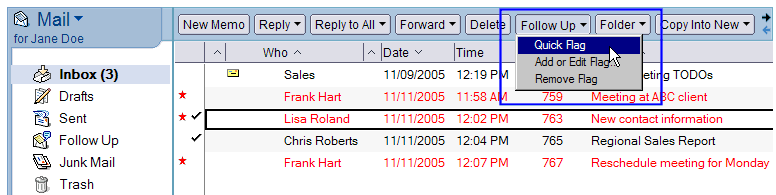
- Select one or more messages to follow up on, and then click the [Follow Up] action button. Choose the Quick Flag action command. The selected messages will immediately be flagged using the default settings from the Follow Up Preferences. No additional steps are required.
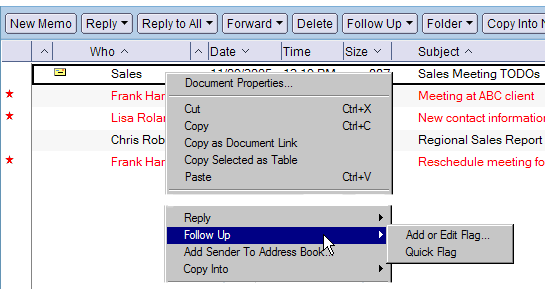
- Right-click a message to access the Follow Up menu and select one of the two available options, as shown in the image below.
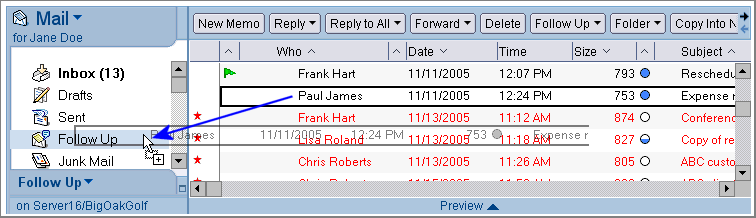
- The final new method for flagging a message for follow up is to simply drag the message to the Follow Up folder. The Flag for Follow Up dialog will automatically open to set options for priority, follow up date, time, and alarm.
Message Marking
To help better organize messages in the Inbox, it is now possible to mark the relevance of messages with icons to identify those that have your name specifically in the To or cc fields. The different display icons, or Attention Indicators, will help to quickly identify which messages are addressed to only you, to a group including yourself, or have your name in the cc field.
 Procedure: Configure Message Marking Procedure: Configure Message Marking
Follow these steps to configure Notes Mail for message marking:
- Click the [Tools] action button and select Preferences from the menu.
- Under the Mail tab, click the Message Marking tab and then the Recipients tab.
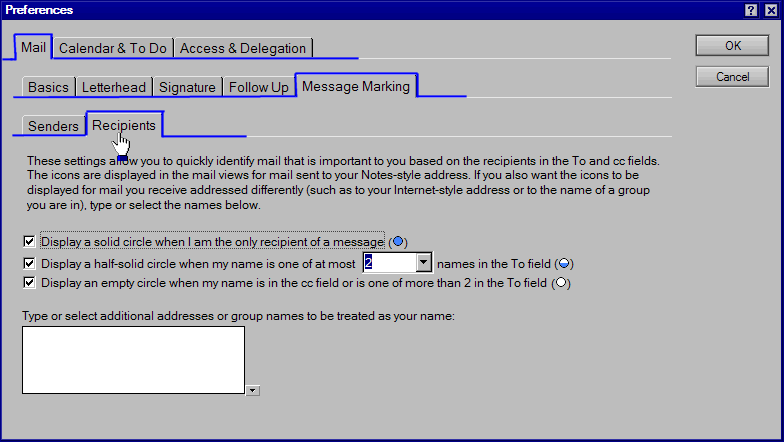
- Select to display the appropriate Attention Indicator icon for one or more of the following situations:
- The solid circle: This will display when you are the only recipient of a message. However, If you are the only recipient of a message, and your name is in the bcc field, the solid circle will not display.
- The half-solid circle: This will display when your name is one of up to two or more names in the To field. Select the desired number of names from the drop-down list.
- The empty circle: This will display when your name is in the cc field. This icon will also display when your name is one of more than the number of names you specified for the To field in the previous situation. For example, in the image above, the empty circle would display when your name is in the To field along with 2 or more other people.
- Click [OK] to save and close the dialog.
|