| Date tip published: | 10/21/2002 |
| Description: | When Notes Release 6 starts, the bookmarks in the Startup folder are used to launch the bookmarked resources. Bookmarks that are placed in the Startup folder can launch Notes databases, Notes views, Notes documents, Notes pages, web pages or other programs when Notes is started. |
To learn more about the many new enhancements to Release 6 and how to get re-certified as a Release 6 CLP use the following link:
Notes Domino 6 Application Development Update
Release 6 Feature Highlight
When Notes Release 6 starts, the bookmarks in the Startup folder are used to launch the bookmarked resources. Bookmarks that are placed in the Startup folder can launch Notes databases, Notes views, Notes documents, Notes pages, web pages or other programs when Notes is started.
Use any of the following procedures to add a bookmark to the Startup folder:
- Drag and drop a Notes resource from the Task Bar to the Startup folder.
- Drag and drop a Notes database from the Workspace to the Startup folder.
- Move or copy an existing bookmark to the Startup folder.
- With a Notes object open, select Create | Bookmark... from the menu and create the bookmark in the Startup folder.
- Drag and drop a non-Notes file to the Startup folder. Use this technique to load the file into its native application when Notes is started.
For example, to open your Inbox whenever you start Notes Domino 6:
- Open up the Inbox folder of your mail file.
- Click on the More Bookmarks folder. The Startup folder is in this folder.

- Drag the window tab of the Inbox onto the Startup folder. The image below shows the Inbox folder from a mail file in the Startup folder.
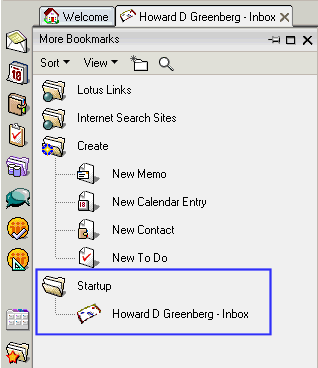
That's it. The next time Notes is started your Inbox is automatically opened!
To remove a bookmarked resource from the startup folder, right-click on the bookmark in the Startup Folder and choose "Remove Bookmark". |