| Date tip published: | 11/07/2005 |
| Description: | Rational Developer 6 can automatically add comments and code when a new Java code element is created. This tip shows how to edit templates to add these comments and code. |
To learn more about about Rational Developer 6 use the following links:
Introduction to WebSphere Using Rational Developer 6
Introduction to WebSphere for Domino Developers using Rational Developer 6
Servlet and JSP Programming for WebSphere using Rational Developer 6
Servlet and JSP Programming using Rational Developer 6 for Domino Developers
 Modifying the Template Code in Rational Developer 6 Modifying the Template Code in Rational Developer 6
Java and JavaDoc style comments may be automatically inserted into the code when new Java code elements are created. This text comes from templates. These templates can and should be altered to make the inserted comments more meaningful for your use and to remove the text that is inserted by default. The following graphic shows a new Java Class that has been created prior to making any changes to the template. Notice that the first comment in green starts with the “/*” which denotes that it is a standard Java comment. The second comment in blue starts with “/**” which denotes that it is a JavaDoc comment.
 Changing the Templates Changing the Templates
The template text is changed in the Preferences dialog box of Rational Developer.
- From the Menu choose Window | Preferences to open up the Preferences dialog.
- Using the Navigation links on the left side, select to expand Java\Code Style\Code Templates. In the detail window on the right side, select to expand Code\New Java files. This will display the dialog box shown below.

- The Pattern: section of the Preferences dialog shows the comments to be added to a new Java file. This pattern is what created the comments and code for the new Java class you saw in the first graphic of this tip. The words starting with the “$” symbol are the template variables which will be replaced with content when a new Java file is created. In the example above a new Java file will contain the following comments and code:
- A Java comment that include "Created on " and then today's date, followed by a TODO (about changing the template.)
- The package declaration
- The type comment which will insert the text in from “Types” under "Comments" (which is above "Code") in the graphic above.
- The type declaration
- The main method (if that box was checked when the Java class was created)
- To edit the Pattern for a new Java file select New Java files and click [Edit...]. The following dialog will appear:
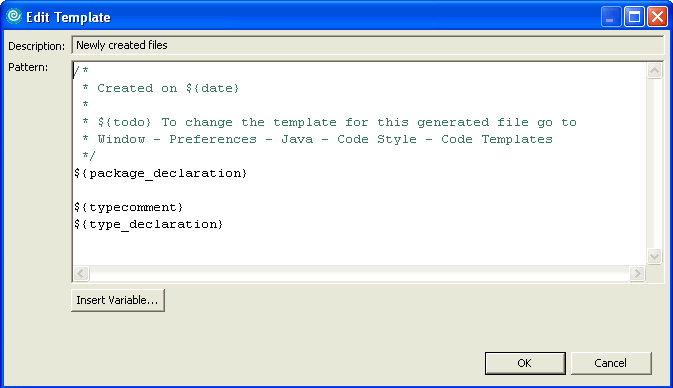
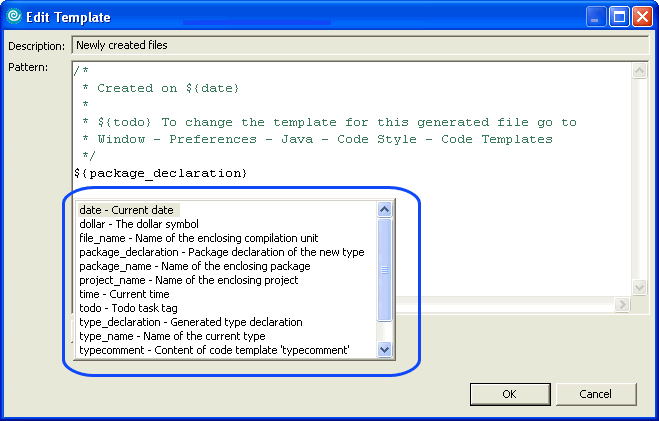
- Text can be edited, deleted or added. To insert a variable, position the cursor and click the [Insert Variable...] button. Choose the variable by clicking on the name in the selection list.
- When done editing the template click the [OK] button.
Editing the Template Comment Variables
In the example above a variable for the type comments ($typecomment) was listed. This variable contained the following text which created the JavaDoc comment seen in the generated code at the beginning of the tip:
/**
* @author ${user}
*
* ${todo} To change the template for this generated type comment go to
* Window - Preferences - Java - Code Style - Code Templates
*/
Follow these steps to edit a template comment variable:
- Expand the Comments section and click on the comment to be edited (in this case Types). Then click on the [Edit...] button.
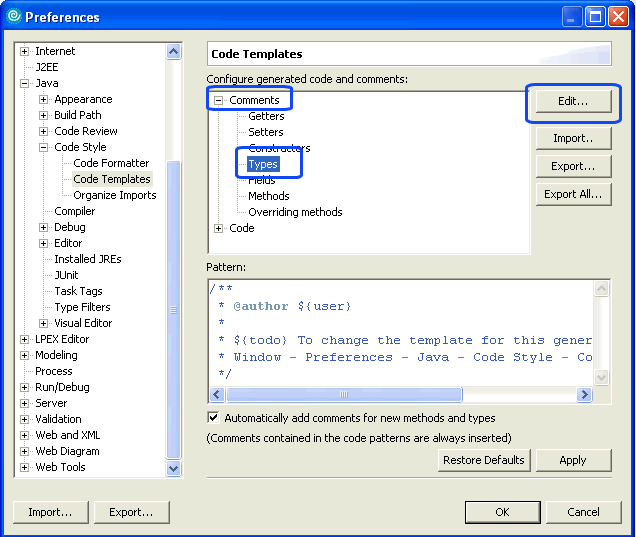
- The following dialog is displayed.
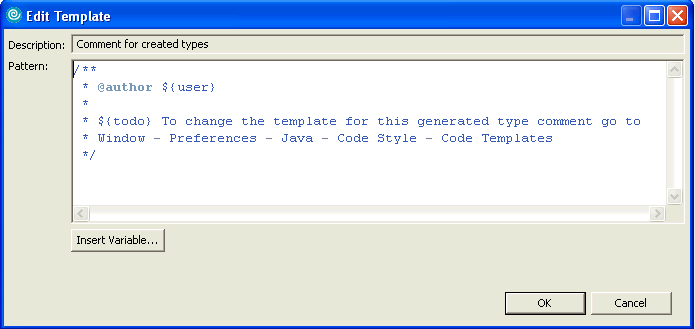
- Text can be edited, deleted or added. To insert a variable, position the cursor and click the [Insert Variable...] button. Choose the variable by clicking on the name in the selection list.
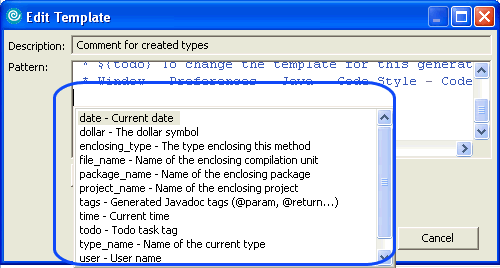
- Click [OK] when done to save your edits.
Suggested Changes
Change the template so that the created date, project name, file name and my name appear. Also, add two lines for a modified date and the person who modified the code last. These values will get filled in when the code is edited in the Java editor.
/*
* Created on : ${date}
* Project Name : ${project_name}
* File Name : ${file_name}
* Created by: : Paul T. Calhoun
*
* Modified by: :
* Modified on: :
*
*/
${package_declaration}
${typecomment}
${type_declaration}
In the code listing above, notice the Created by line is hard coded. The reason is that the ${user} variable was not used is that it defaults to the ID used to log into the machine. This may or may not be your entire name. In some environments it may be just part of your name or just a login ID. The lines for the created on date, project name and file name use a variable. To add the variable values after the static text, click the [Insert Variable…] button at the bottom of the screen and choose the appropriate variable from the list.
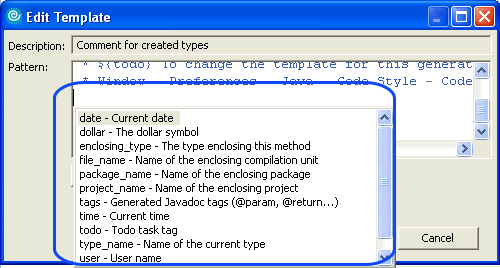
The Types under Comments should also be edited. These get brought in since the $(typecomment) variable is used. Edit Comments\Types to remove the TODO and the author name variables (see the procedure above). Add in the text below so the JavaDoc comment shows the file name and project name.
Now newly created Java files will contain the following:
Drop TODOs
Drop the TODOs in the comments as they tend to clutter your workspace with TODOs that don’t mean anything.
Edit the following under Code to remove the TODO item.
- Catch block body
- Method body
- Constructor body
All three of these include a TODO item which is added to your code when Constructors, Methods and Catch blocks are automatically generated and added to your Java code.
Using the templates allows standardized comments to appear in all generated code. The comments only have to be implemented one time and then they will appear in all Java code from this point forward.
This tip was contributed by Paul Calhoun. Paul is TLCC's instructor for the Java, WebSphere and Rational courses. He is a noted speaker and instructor at many industry conferences. In addition to his work as a TLCC instructor and course developer Paul also is a consultant. He can be reached at pcalhoun@nnsu.com. |