| Date tip published: | 08/09/2004 |
| Description: | A new feature with Release 6 is the ability to convert Notes elements, such as tables or fields, into HTML, and back again. Developers may wish to convert elements to HTML if they want to use the native Notes tools for creating elements (such as a table) to get started with the design of a form or page, but then want to fine tune their design for the web. A element, like a table, could be converted to HTML and then the HTML code could be copied into a web design program (like WebSphere Studio or Microsoft Front Page), modified and enhanced, and then pasted back into Notes form or page as pass-thru HTML. |
To learn more about developing web applications using Domino use the following link:
Developing Domino 6 Web Applications
 Converting Notes Elements to and from Pass-Thru HTML Converting Notes Elements to and from Pass-Thru HTML
A new feature with Release 6 is the ability to convert Notes elements, such as tables or fields, into HTML, and back again. Developers may wish to convert elements to HTML if they want to use the native Notes tools for creating elements as a quick way to get started with the design of a form or page, but then want to fine tune their design for the web. A element, like a table, could be converted to HTML and then the HTML code could be copied into a web design program (like WebSphere Studio or Microsoft Front Page), modified and enhanced, and then pasted back into Notes as pass-thru HTML.
 Avoid Converting Elements to HTML and Back to Notes Format Avoid Converting Elements to HTML and Back to Notes Format
Although this tip outlines the procedures for converting elements to HTML, and then back to Notes, it is not recommended that this be done. Every time elements are converted, in either direction, some custom properties and settings are lost. Converting back and forth will ultimately mean more work for developers, because they will have to reset any lost properties.
Many HTML settings do not have a corresponding Notes setting and therefore these properties will be lost. This is also true when converting from Notes to HTML. |
 Procedure: Converting from Notes Elements to Pass-Thru HTML Procedure: Converting from Notes Elements to Pass-Thru HTML
Follow these steps to convert a selected block of Notes elements to HTML:
- Edit a page, form, or subform in Designer.
- In the work pane, select a block of Notes elements to convert.

- Choose Edit | Convert to HTML from the menu. The following dialog is displayed:

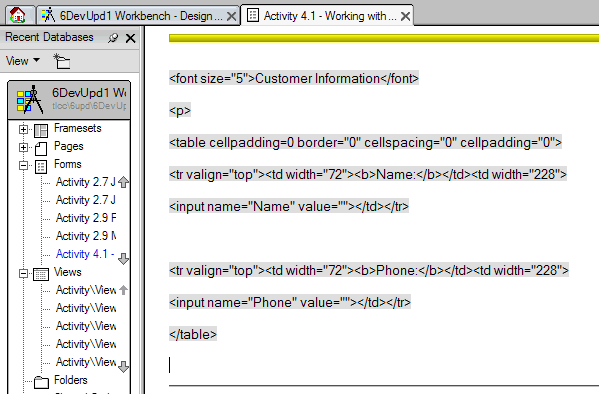
- Click the [Proceed] button to proceed with the conversion. The selected Notes elements are converted to Pass-Thru HTML.
 Considerations When Converting to HTML Considerations When Converting to HTML
Consider the following points when converting Notes elements to HTML:
- Do not convert computed fields. Computed fields are NOT converted to HTML <input> tags. Instead, computed fields are converted to static text.
- Buttons and hotspots which contain JavaScript are converted to HTML.
- Buttons and hotspots with contain formula language or LotusScript code are NOT converted. These buttons are lost when converted.
- After converting to HTML, check the HTML immediately. If something was mistakenly converted to HTML, such as a computed field, select Edit | Undo Delete from the menu to recover. Do not select Edit | Convert to Notes Format because any lost elements will not be recovered. Alternatively, the form or page can be closed without saving, realizing that any changes made since the last save will be lost.
|
Procedure: Converting From HTML to Notes Elements
After editing Pass-Thru HTML in the HTML Pane, developers may want to convert the HTML back to Notes elements.
Follow these steps to convert a selected block of Pass-Thru HTML to Notes elements:
- Edit a page, form or subform in Designer.
- In the work pane, locate the input cursor in a block of Pass-Thru HTML and select Edit | Convert to Notes Format from the menu.

- The following dialog is displayed:

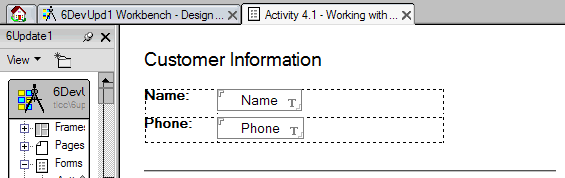
- Click the [Yes] button to proceed with the conversion. The selected HTML is converted to Notes elements.
 |