| Date tip published: | 11/18/2002 |
| Description: | Want to highlight incoming emails from your boss or anyone else? The Notes 6 client can be setup to have different background and text colors depending on the incoming mail. |
To learn more about the many new enhancements to Release 6 and how to get re-certified as a Release 6 CLP use the following link:
Notes Domino 6 Application Development Update
 Highlight Incoming Mail Highlight Incoming Mail
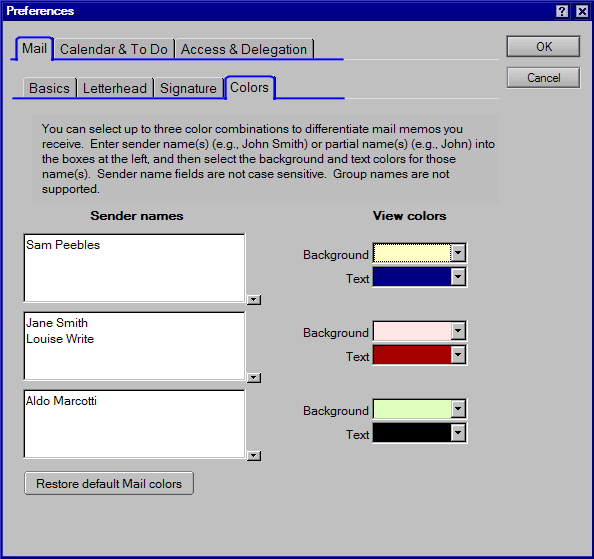
Release 6 supports color-coded email. You can assign a background and text color combination to three lists of mail sender names. The mail received from the specified sender groups is color coded in all of the mail views and folders. This is great way to identify mail from an specific individual or group of people. In the example below the mail from "Howard D Greenberg" is color coded to use a yellow background and have blue text.

Follow these steps to color code your mail:
- Open your mail.
- Select Tools | Preferences from the action bar.

- In the Preferences dialog, click the Mail tab and then click the Color tab.
Add a name or several names to the sender name list boxes. For each group of names, choose a background color and text color for mail received from these name.
Click the [OK] button to save and close your preferences.
Color coding can be added to any view changing the design of the view. Rows can be a certain color based on the contents in a document. This technique is covered in TLCC's Notes Domino 6 Application Development Update course.
|