| Date tip published: | 03/24/2003 |
| Description: | Want to reuse the same Java code across several agents in your Domino application? Notes Domino 6 now supports Java Libraries. |
To learn more about Java programming or the new features in Notes Domino 6 use the following links:
Beginner Java Programming for Notes Domino 6
Notes Domino 6 Application Development Update
 Creating and Using Shared Java Libraries Creating and Using Shared Java Libraries
You may want to reuse the same Java code across several agents in your Domino application. One approach is to hard-code the common class or method into each and every agent that requires the functionality. However, maintaining code spread across many design elements can be difficult if not problematic. Another approach is to place your code into an external class file and import it. The drawback to this approach is that the external class files do not replicate and changes would require that each agent be updated (reimported.) A more practical approach is to develop a Shared Java Library that any agent in the database can use.
The Script Libraries feature in Release 6 allow a programmer to write a script once and then use it anywhere in the database. This is similiar to the LotusScript Script Libraries. Note that a Java Script Library can only be accessed by agents which are in the same database as the library.
This tip describes how to create a Shared Java library and share it across multiple agents in your Notes Domino 6 application.
 Creating a Shared Java Library Creating a Shared Java Library
Follow these steps to create a Shared Java Library in a Notes database:
- Open the database in Designer.
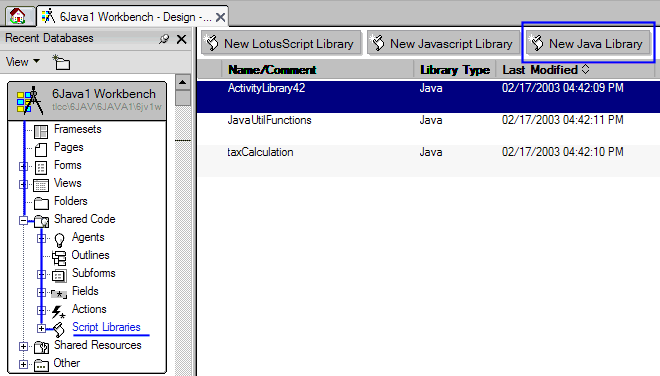
- In the Design Pane, expand the Shared Code list, and select Script Libraries to display the list of shared libraries. Click the [New Java Library] action button to open the Script Library builder.
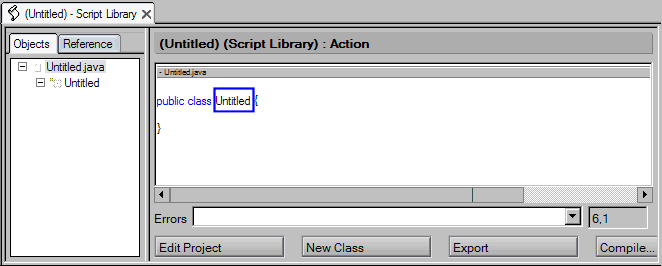
- This action generates a Java code environment similar to the one that Designer creates for a new Java agent. The primary difference is that the new class does not automatically extend the AgentBase class. Change the class name from "Untitled" to a name that describes the function of your new class and its methods.
- Create any additional classes and methods in the library using the same techniques that you use when you create classes and methods for a Java Agent.
- Compile and save the library. The first time you save a new library, Designer prompts you for a library name. Enter the desired name in the dialog and click [OK] to save and close. This name can be changed later by using the properties box for the script library.

 Including a Shared Java Library Including a Shared Java Library
Once you create a Java library, you can make its classes and methods available to your Java agents by using the same techniques you use to include Java code from an external class file.
Follow these steps to include a Shared Java Library in a Java Agent or another Shared Java Library: - Create or edit the agent that requires the functionality stored in the Java library.
- Click the [Edit Project] button at the bottom of the Programmer's pane. This action opens the "Organize Java Agent Files" dialog window.

- In the Organize Java Agent Files dialog, choose "Shared Java Libraries" for the browse option. Choose from a list of libraries available in the current database. Click the [Add/Replace File(s)] button to add the selected Shared Java Libraries to the "Current Agent Files" box on the right side of the dialog.
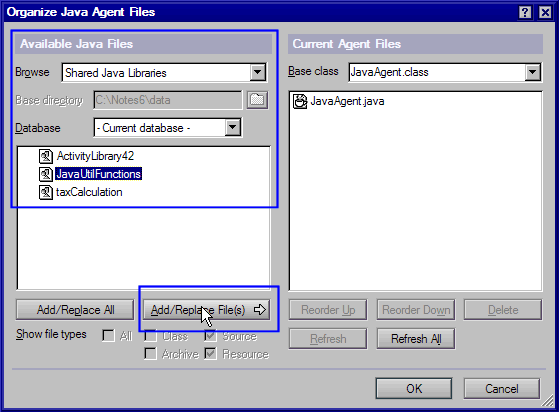
- Click the [OK] button to close the Organize Java Agent Files dialog and return to the Agent Builder window.
Calling a Method from Shared Java Library
Use the class.method dot notation to call a method defined in a Shared Java Library that you have included in your agent.
 This image shows a Java Agent that includes a Shared Java Library and calls a method from this library. The library defines a utilFunctions class, which includes an hw method. This image shows a Java Agent that includes a Shared Java Library and calls a method from this library. The library defines a utilFunctions class, which includes an hw method.
Notice that the Java agent code does not provide an obvious clue that the Shared Java Library is included and available. There is no "import" statement as with external class files. You must click the [Edit Project] button to open the Organize Java Agent Files dialog to check for any Shared Java Libraries.
|