| Date tip published: | 05/10/2004 |
| Description: | Often programmers use code that is provided from a third party or another developer. This code is typically delivered as a JAR file (Java Archive) for Java programs. A JAR file is simply a compressed ZIP file that contains classes, other files that may be needed by a program, and a manifest file that describes the contents of the JAR file. This tip will show you how to import and export a JAR file in WebSphere Studio. |
To learn more about WebSphere Studio use the following links:
Introduction to WebSphere Studio 5
Servlet and JSP Programming using WebSphere Studio 5
Introduction to WebSphere 5 for Domino Developers
Servlet and JSP Programming using WebSphere 5 for Domino Developers
 Importing and Exporting JAR files Importing and Exporting JAR files
Often programmers use code that is provided from a third party or another developer. This code is typically delivered as a JAR file (Java Archive) for Java programs. A JAR file is simply a compressed ZIP file that contains classes, other files that may be needed by a program, and a manifest file that describes the contents of the JAR file. This tip will show you how to import and export a JAR file in WebSphere Studio.
 Procedure: Importing a JAR File Procedure: Importing a JAR File
Follow these steps to import a class or JAR file into a J2EE application:
- In the Packages View of the Java perspective, select the project where the file will be imported and choose File | Import from the menu.
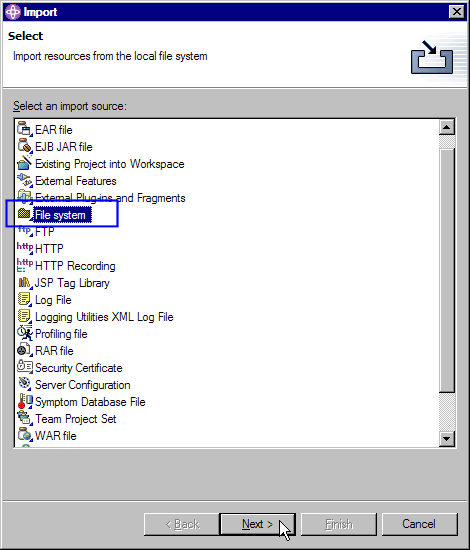
- In the Import wizard, choose "File System" and click [Next].
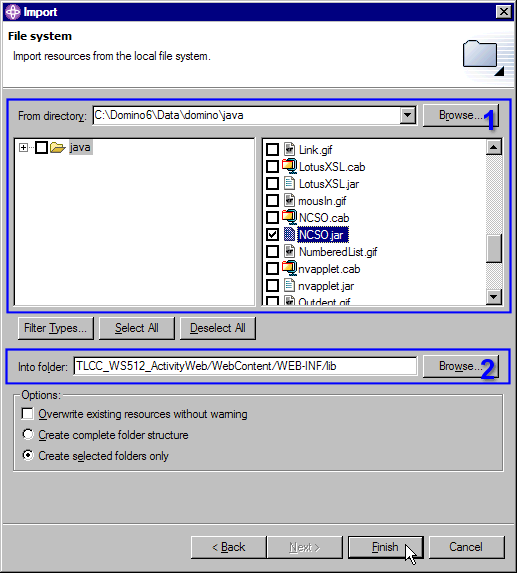
- Click the [Browse] button and select the directory that contains the class or JAR file to import. Select to check the file(s) to import. Next select the folder in the project where the class or JAR file should be imported. For a J2EE application, import the resource into the WebContent/WEB-INF/lib folder to automatically add the resource to the project's classpath. Click the [Finish] button to complete the import.
Procedure: Using Code in a JAR File
Once the JAR file has been imported into the WEB-INF/lib folder it can be used in an application by importing the package with an import statement.
Assume the following code is in a JAR file.
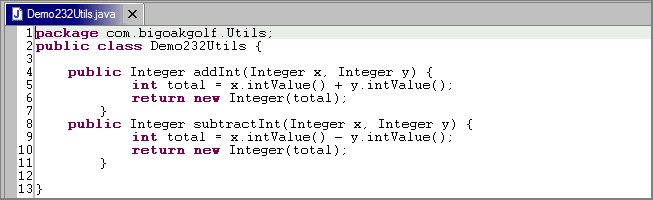
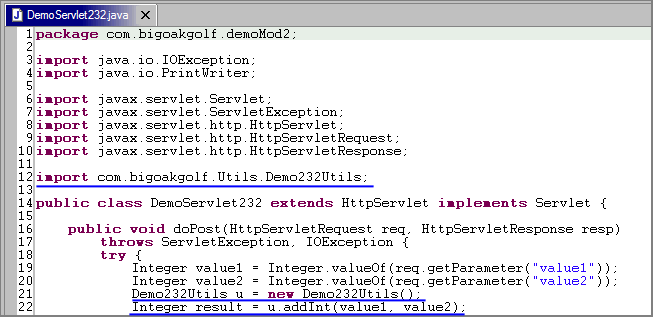
This code has two methods, one to add two Integers and the other to subtract two Integers. Once imported, the addInt and/or the subtractInt methods can be used. In the example below, the Demo232Utils class imported in line 12 and an object of this class, u, is instantiated in line 21. The addInt method is used in line 22.
Procedure: Exporting a JAR File
To export a JAR file follow the following procedure:
- Right click the Java class file to export and select Export... from the context menu.

- Choose JAR File as the export type and click [Next].

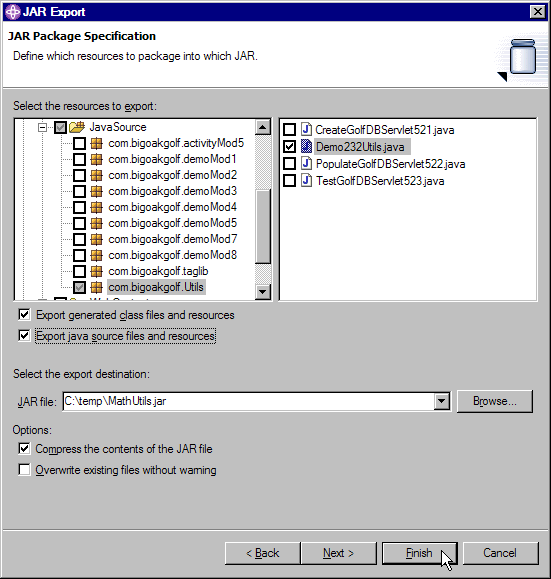
- The class file to export should already be selected as the resource to export. If you want to also export the source code check the option to "Export java source files and resources." Enter the location and name of the JAR file and then click [Finish] to complete the export to the JAR file.
 |