| Date tip published: | 09/19/2005 |
| Description: | One of the new features in Notes Domino 7 allows the administrator to run an agent to change the style of the Inbox. A Domino developer could design several alternative InBox styles, and then the Administrator can run the agent to pick the desired style for the mail template. |
To learn more about Notes Domino 7 use the following link:
DB2 for Domino 7 Administrators and Developers
 Notes Domino 7 Tip - Change the Inbox Style Notes Domino 7 Tip - Change the Inbox Style
One of the new features in Notes Domino 7 allows the administrator to run an agent to change the style of the Inbox. A Domino developer could design several alternative InBox styles, and then the Administrator can run the agent to pick the desired style for the mail template.
This is an improvement over previous releases since the actual design of the Inbox folder (which is called ($Inbox) in the folders list does not have to be modified directly. An administrator with no knowledge of Domino Designer can change the style.
There are two steps to change the Inbox style. The first is to create the alternative style(s) in the mail template. The next step is to actually run the agent to choose which style to use for the mail template. This new style will then be installed on the user's mail files when the Design task runs (by default at 1:00 AM.)
 Creating InBox Styles Creating InBox Styles
The easiest way to create alternative Inbox styles is to copy the default ($Inbox) folder. Modify this copy of the ($Inbox) folder and rename it to ($Inbox-uniqueName). Make sure you use a unique name for the new Inbox style.
 Backup the Existing ($InBox) first Backup the Existing ($InBox) first
Running the agent to use an alternative Inbox style will overwrite the design of the existing Inbox. If you do that the only way to get back to the original design (the way it came from IBM) is to get a fresh mail template (which might require running the Installation program again.)
Copy the existing ($Inbox) by going to the Folders design list and highlighting the $(Inbox) folder. Choose Edit - Copy and then Edit - Paste to create a copy. It will be then be called "(Copy of $Inbox)". Rename this copy of the folder to "$Inbox-Original" so you can always return back to the original design if desired.
Another option is to make a Database copy (File - Database - New Copy) of the mail template file on your local computer. Give this backup copy a unique Database Title and file name. You also may want to change the Template name in the Design tab (Database properties) from StdR7Mail to "StdR7Mail-Backup" to avoid mixing up this backup copy with the actual mail template that is in use. |
Below are the steps to create a new Inbox style:
- Go to Domino Designer 7 and open mail template (mail7.ntf on your Domino 7 server or local Notes 7 client.)
- Click Folders to view the design list of Folders.
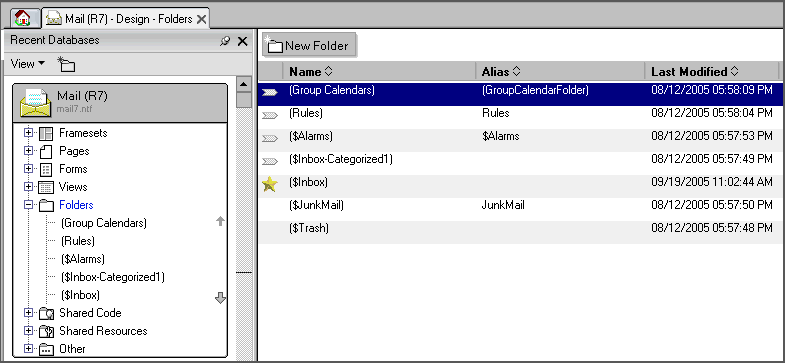
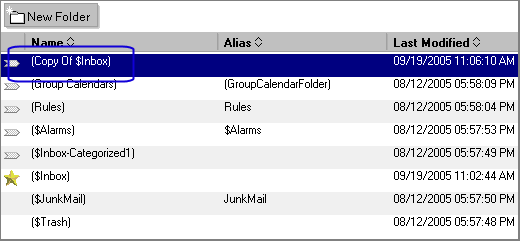
- Create a new copy of the ($Inbox) folder by copying the $(Inbox) folder to the clipboard (Edit | Copy) and then pasting it back (Edit | Paste) Choose [No] when prompted about the Design Template inheritance.

- A new folder design, (Copy of $Inbox) will be created.
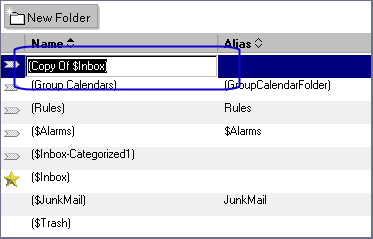
- Rename this new copy by clicking on the name of the folder in the Design List. Call the new Inbox style ($Inbox-uniqueName). The first part of the name should be "($Inbox-)" and the rest of the name should be unique. NOTE: Renaming design elements directly in a Design List is another new Domino 7 feature!
- Make whatever changes are desired to the design of the new Inbox and save your changes. TIP: to test this feature try changing the background color.
 Setting a New InBox Style Setting a New InBox Style
The next step is to run the agent to choose the new style for the mail template.
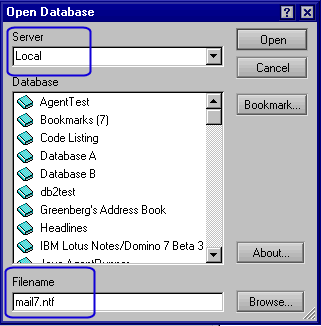
- Open the Mail template by selecting File | Database | Open from the menu and selecting the MAIL7.NTF template to open.
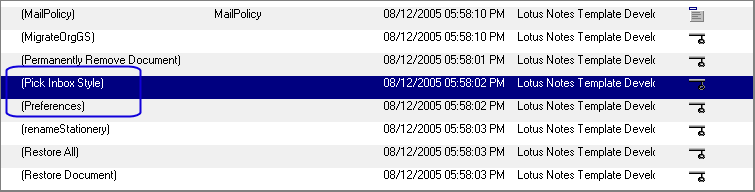
- Select View | Agents from the menu to open the Agents design list. The list of agents will appear. Scroll down and highlight the "(Pick Inbox Style)" agent. Note that this agent is set to only run from the Agent List.
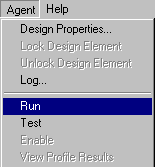
- Select Agent | Run from the menu to run this agent.
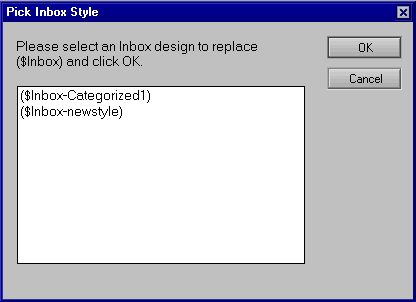
- A dialog box will appear showing the possible styles for the inbox. Choose the desired style desired and click [OK].
- The Inbox design will be updated for this new style. If you were modifying your own mail file and that mail file was open, close your mail file and re-open it to see the changes.
 Running This Agent Changes the Signature of the ($Inbox) Folder Running This Agent Changes the Signature of the ($Inbox) Folder
Running this agent will cause the signature on the ($Inbox) design element to be updated with the name of person that initiated the agent. Make sure this person (or id file) has the appropriate rights (for the ECL and other security features in Domino.) |
|