| Date tip published: | 01/05/2004 |
| Description: | Notes 6 added several enhancements to working with tables. Tabs on tabbed tables can now be placed on the bottom or on the side of the table. A new table style, caption tables, will show just one row of a table. There is also a keyboard sequence to move table rows (and list entries) up or down in the table or list. A table containing links to documents can be easily created from a view. This tip will highlight the last two new features, how to move rows in a table and how to create a table from a view. |
To learn more about Notes 6 features for users and developers use the following links:
Notes Domino 6 Application Development Update
Notes 6 User Courses - 25 user license
 Shortcut Keys to Move List Items and Table Cells Shortcut Keys to Move List Items and Table Cells
Release 6 adds two new key sequences to move the contents of a table cell or list item up or down.
| Key Combination | Result on Contents of Current List Item or Table Cell |
| <CTRL><DOWN ARROW> | Moves item in list or table one row down |
| <CTRL><UP ARROW> | Moves item in list or table one row up |
 Move the Selected Rows in a Table Move the Selected Rows in a Table
Use the same key combinations to move the contents of the selected rows in a table. This image shows how to move the last two rows in a table.
|
 Create a Table from a View Create a Table from a View
Notes 6 adds the ability to create a table from the selected documents in a view. This new feature can be used to capture summary information from a Notes view for use in a report document or for forwarding in a Notes mail memo.
This image shows a table which was created using selected documents in a view. Notice the doclinks (which are not active in the image) to the selected documents in the view.
 Procedure: Create a Table from a View Procedure: Create a Table from a View
Follow these steps to create a table from the selected documents in a view.
1. Open a view and select the documents you wish to copy to the table.
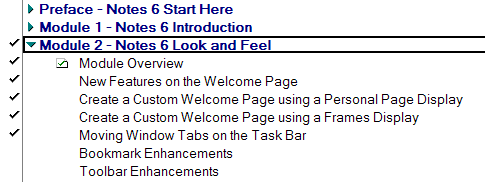
2. Select Edit | Copy Selected as Table from the menu bar.
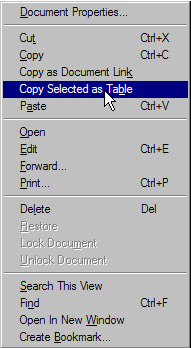
Or right click on a selected document and choose Copy Selected as Table from the context menu.
3. Switch to the Notes document or memo to create the table. Move the input cursor to the location for the table in a rich text field and choose Edit | Paste from the menu bar.
|