| Date tip published: | 06/12/2008 |
| Description: | The Notes 8 Standard client (Eclipse based) introduced a RSS feed reader that resides in the Notes 8 sidebar. This tip will show you have to subscribe to and use RSS feeds in the Notes 8 client. |
To learn more about the changes in Notes and Domino 8 use the following links:
Notes Domino 8 Application Development Update
Notes Domino 8 System Administration Update
 Use the RSS Reader in Notes 8 Use the RSS Reader in Notes 8
This tip is taken from a lesson in TLCC's Notes 8 user courses. These courses are a great way to show your users all the new features in Notes 8. You can easily deploy the courses to all your users by simply placing them on your Domino server. The courses can be taken with a Notes client or a web browser. The content in the courses can be easily customized to fit your organization's needs. An integrated discussion database is used to allow the student to ask questions of an instructor/support person. A list of topics in the course can be deployed in the Notes 8 sidebar to allow for a quick reference. Try out TLCC's Notes 8 user course for yourself at no charge!
Click here for more information on TLCC's Notes 8 user courses |
|
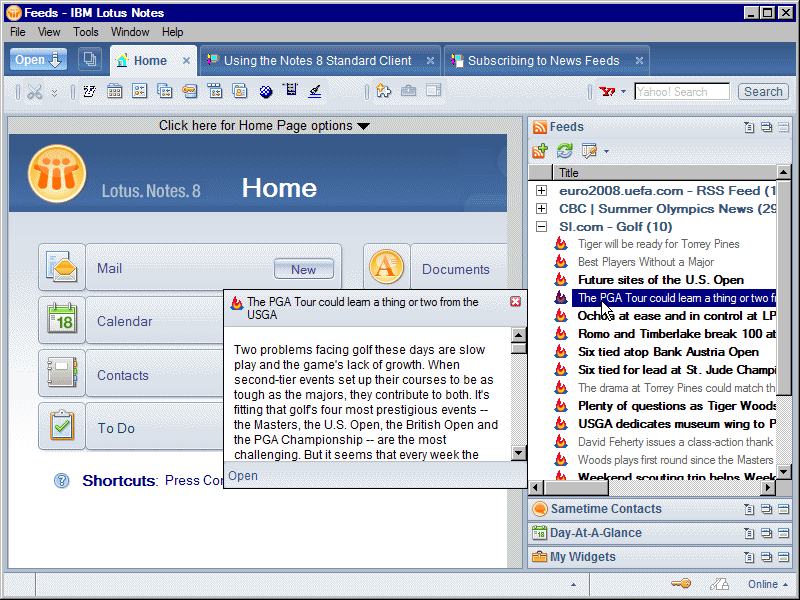
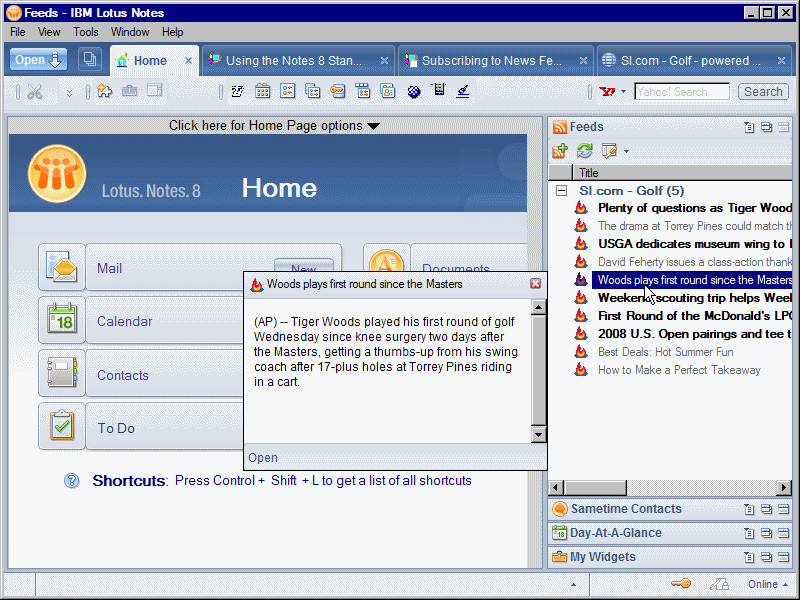
Many web sites and and web blogs provide RSS feeds. RSS stands for Really Simple Syndication, and is a standard format to publish summaries and links to web content that is frequently updated. For example, news feeds can be accessed from the CNN or CBC web sites. Notes 8 provides a feed reader application in the Sidebar to subscribe to news feeds. The following image shows the Feeds application with subscriptions to three sports-related news feeds. The SI Golf News feed is expanded and the synopsis for the selected feed entry is displayed in a floating window. The main benefit of using the Feeds application is to aggregate content (or headlines) from multiple web sources.
 Procedure: Search the Internet for News Feeds Procedure: Search the Internet for News Feeds
Many web sites and and web blogs provide RSS feeds. For example, news feeds can be accessed from the CNN or CBC web sites. Feeds have a ".rss" file type, so you can search the Internet for feeds on a specific area of interest by adding "filetype:rss" to the end of your search phrase.
Follow these steps to search the Internet for news feeds:
- Open a Web browser window to a search engine like Google or Yahoo! Enter the text describing your area of interest and append "filetype:rss" to search for RSS feeds.
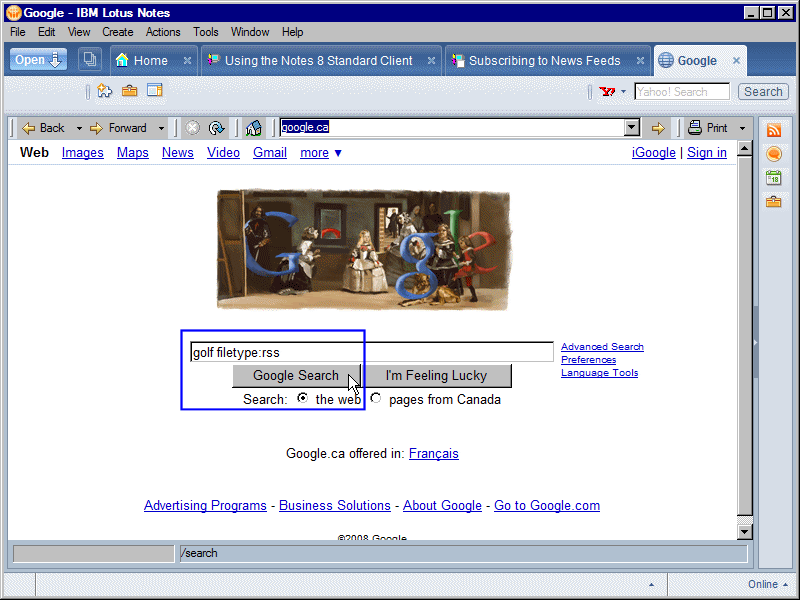
- Select the desired RSS feed from the search results. In the following image, notice the ".rss" file type for the returned list of feeds.
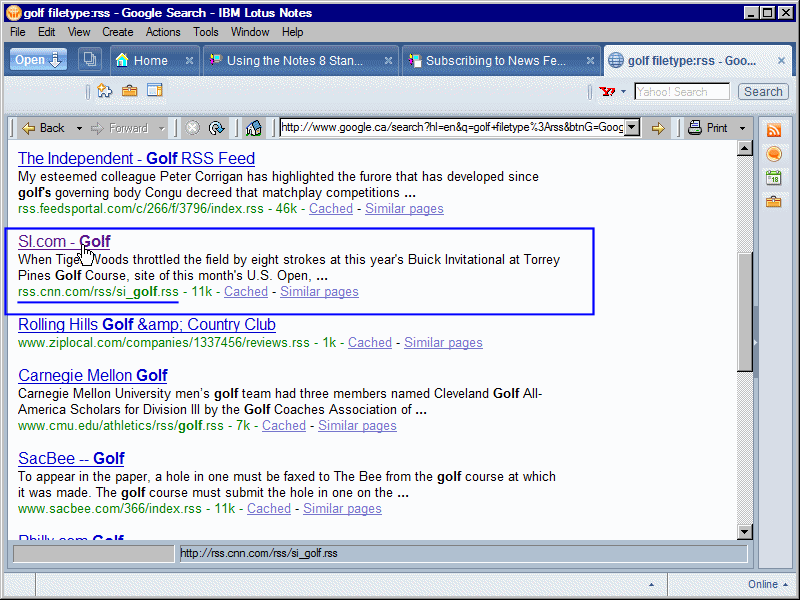
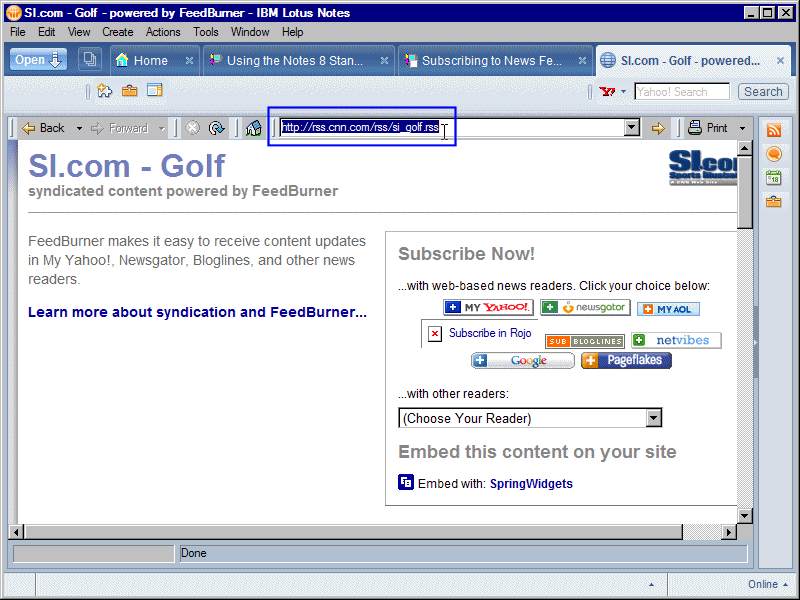
- To subscribe to the feed, either Copy & Paste or Drag & Drop the URL address to the Feeds application in the Sidebar using one of the procedures described below.
 Procedure: Copy & Paste the URL to Subscribe to a News Feeds Procedure: Copy & Paste the URL to Subscribe to a News Feeds
Follow these steps to subscribe to a news feed by copying and pasting its URL address:
- Open the web page to the news feed. Select the URL address to the feed and press <CRTL><C> on the keyboard to copy.
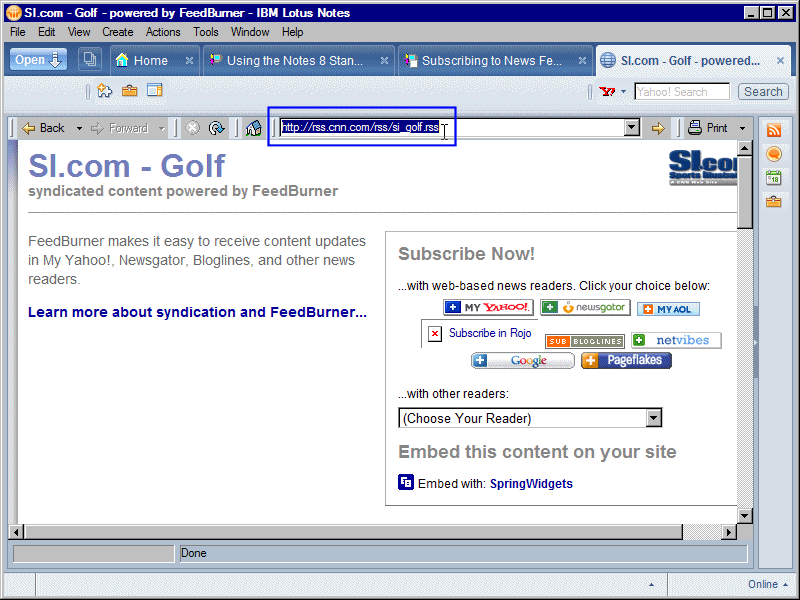
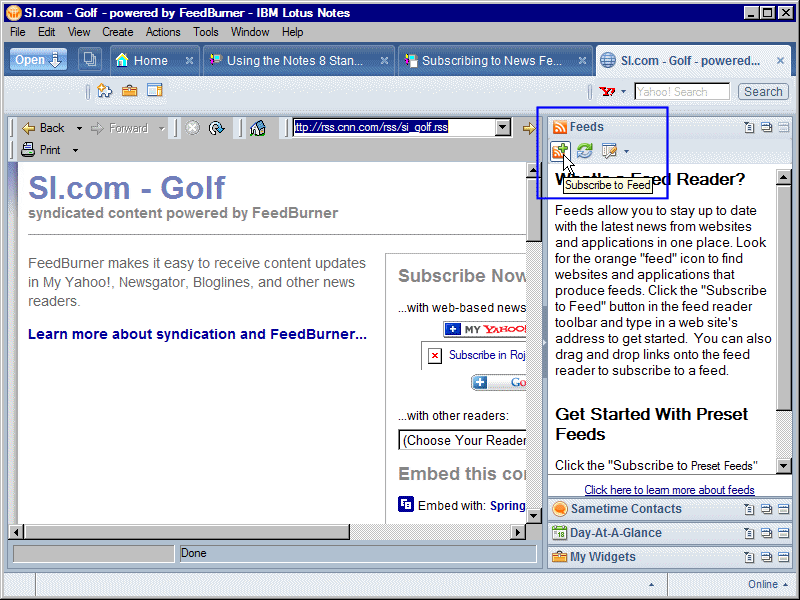
- Open the Feeds application in the Sidebar and click the Subscribe to Feed icon (
 ) in the Feeds toolbar. ) in the Feeds toolbar.
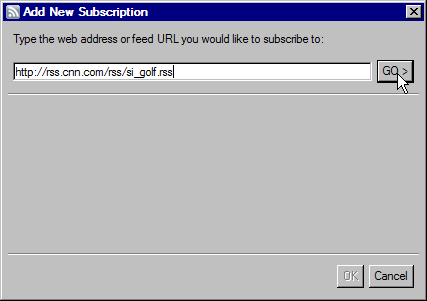
- In the Add New Subscription dialog, click in the address field and press <CRTL><V> on the keyboard to paste in the URL address to the feed. Click the [Go] button.
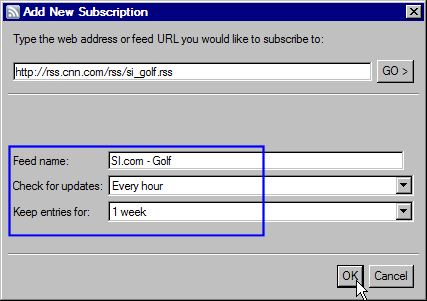
- After clicking the [Go] button, the dialog is updated with the feed name. There are also settings to check for updates and to set the duration to keep the news feed entries. Accept or change these settings as desired and click the [OK] button.
- The feed is added to the Feeds application in the Sidebar.
 Procedure: Drag & Drop to Subscribe to a News Feed Procedure: Drag & Drop to Subscribe to a News Feed
An easier way to subscribe to a news feed is to drag and drop its URL or news feed icon (  ) directly into the Feeds application in the Sidebar. ) directly into the Feeds application in the Sidebar.
Follow these steps to subscribe to a news feed via a drag and drop operation:
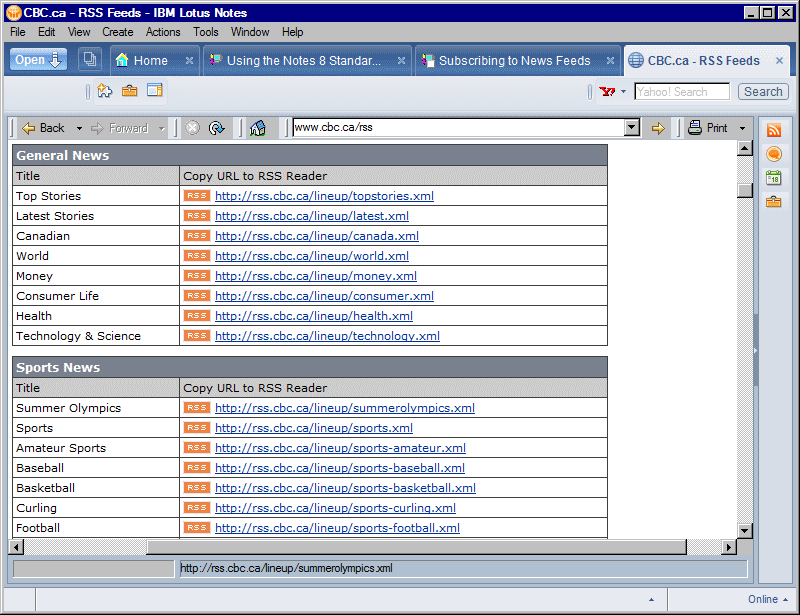
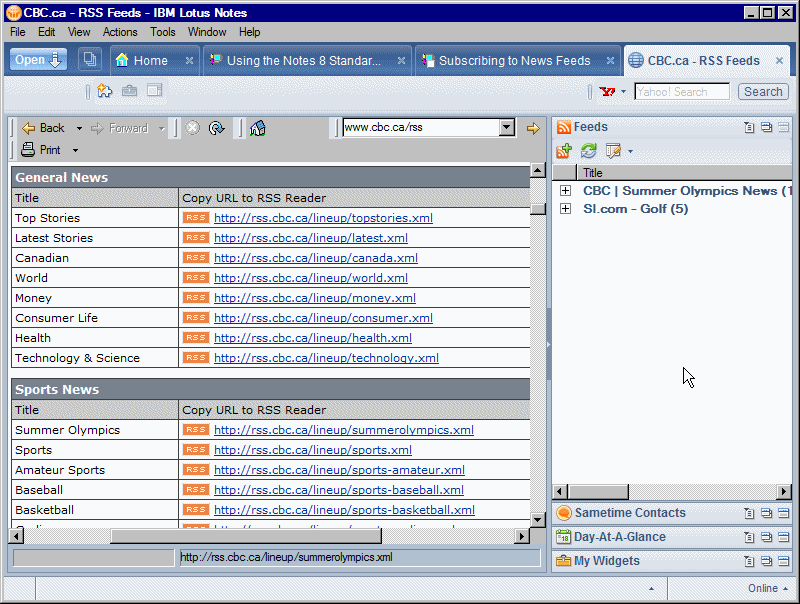
- Open the web page to the news feed to add. Many web sites will provide a listing of all the feeds that are available at that site. The following image shows a listing of RSS news feeds that can be added from the Canadian Broadcasting Corporation (CBC) web site.
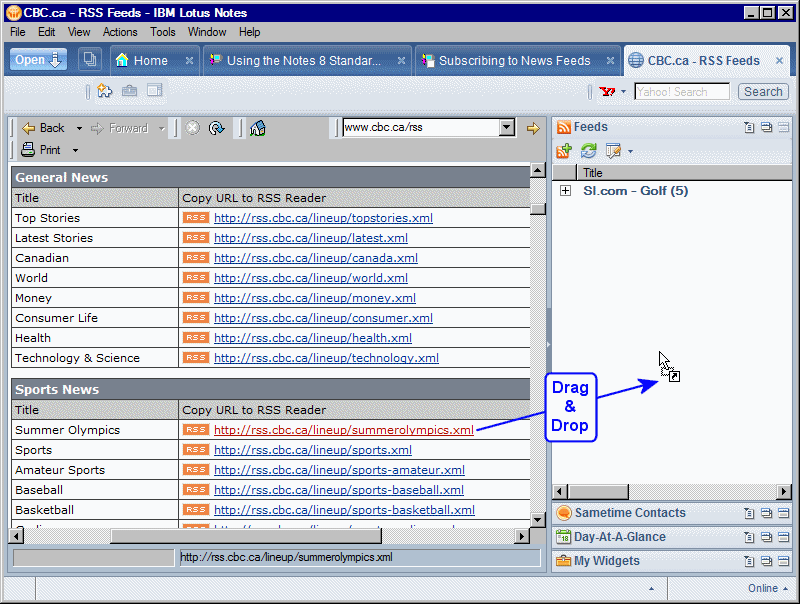
- Open the Feeds application in the Sidebar. Drag and drop the feed's URL or the news feed icon (
 or or  , but typically uses the orange color standard) directly into the Feeds application in the Sidebar. , but typically uses the orange color standard) directly into the Feeds application in the Sidebar.
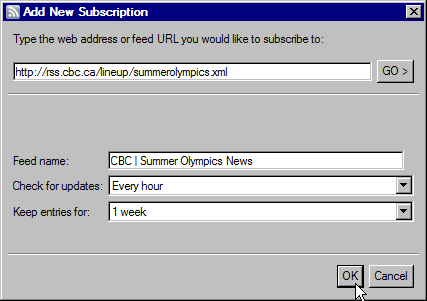
- The Add New Subscription dialog will open with the feed's details automatically completed into the appropriate fields of the dialog. Accept or change these settings as desired and click the [OK] button.
- The feed is added to the Feeds application in the Sidebar.
 Procedure: Viewing and Refreshing Feeds Procedure: Viewing and Refreshing Feeds
In the Feeds application in the Sidebar, click the expand control (  ) to expand a feed to view its entries. Click the collapse control ( ) to expand a feed to view its entries. Click the collapse control (  ) to collapse a feed. Unread feeds will display with bold black text. Feeds you have read or previewed in the synopsis window (see below) will display with gray text. The number in parenthesis beside the feed name indicates the total number of unread entries for the feed. ) to collapse a feed. Unread feeds will display with bold black text. Feeds you have read or previewed in the synopsis window (see below) will display with gray text. The number in parenthesis beside the feed name indicates the total number of unread entries for the feed.
As the following image shows, you can click on a feed entry to open a window with a synopsis for the entry.
To retrieve the complete contents for the entry, click on [Open] in the synopsis window or double-click the entry in the Feeds application. The following image shows the returned contents for a feed entry.
Feeds are updated on the interval set in the Feed Subscription. To immediately update all feeds to retrieve any new entries, click the Refresh All Feeds icon (  ) in the Feeds toolbar. ) in the Feeds toolbar.
 Procedure: Managing Feeds Procedure: Managing Feeds
To edit the settings for a feed, right-click the feed title and select Edit Feed Subscription from its context menu. Change the settings as desired in the Edit Subscription dialog and click the [OK] button.
To unsubscribe to a feed, right-click the feed title and select Unsubscribe Feed from its context menu.
|